Visual Studio Code in Practice
Visual Studio Code has become my go-to code editor, and for good reason. It strikes the perfect balance between being lightweight and feature-rich, boasting an extensive extension ecosystem that adapts to virtually any development workflow. With seamless cross-platform support and robust backing from Microsoft, VS Code continues to evolve as one of the most versatile editors available today.
In this article, I’ll share some of my favorite extensions and practical usage tips that have significantly enhanced my daily development experience.
Gistpad
Gist service provided by GitHub is a great way to share code snippets.
Gistpad is an easy-to-use Gist extension to edit and manage your Gists on GitHub.
Available Here: GistPad
Gitlens
GitLens allows you to see the Git log changes for the current line directly in your code editor, offering a truly amazing out-of-the-box experience with minimal configuration.
Introduction from official website:
GitLens supercharges the Git capabilities built into Visual Studio Code. It helps you to visualize code authorship at a glance via Git blame annotations and code lens, seamlessly navigate and explore Git repositories, gain valuable insights via powerful comparison commands, and so much more.
Official website:
https://marketplace.visualstudio.com/items?itemName=eamodio.gitlens
Hexo Auto Updated
Hexo Auto Updated is an Visual Studio Code extension that automatically updates the updated timestamp of your post when you save your post.
Hexo Auto Updated: Here is the article I wrote about this extension.
Essential Keyboard Shortcuts
cmd + shift + p => Open Command Palette (Preference: Open User Settings JSON)opt + shift + ↓ => Duplicate current line belowcmd + x => Cut current linecmd + shift + k => Delete current line
Visual Studio Code Derivative
Many VSCode OSS-based derivatives have emerged in the market, such as Cursor, Kiro, Antigravity, Trae, etc. While these editors primarily use the Open VSX registry, they also support local VSIX installation, which means we can download extensions from the VS Code Marketplace and install them manually.
Download VSIX from VS Code Marketplace
To download a VSIX file directly from the VS Code Marketplace, use the following URL format:
1 | https://marketplace.visualstudio.com/_apis/public/gallery/publishers/ |
Here’s an example for downloading the Hexo Auto Updated VSIX.
https://marketplace.visualstudio.com/_apis/public/gallery/publishers/leon-qiu/vsextensions/hexo-auto-updated/latest/vspackage
Switch to Visual Studio Code Official Marketplace
Another alternative is to switch to the visual studio code official marketplace.
Example of Antigravity
Navigate to Settings -> Antigravity Settings -> Editor and replace the url
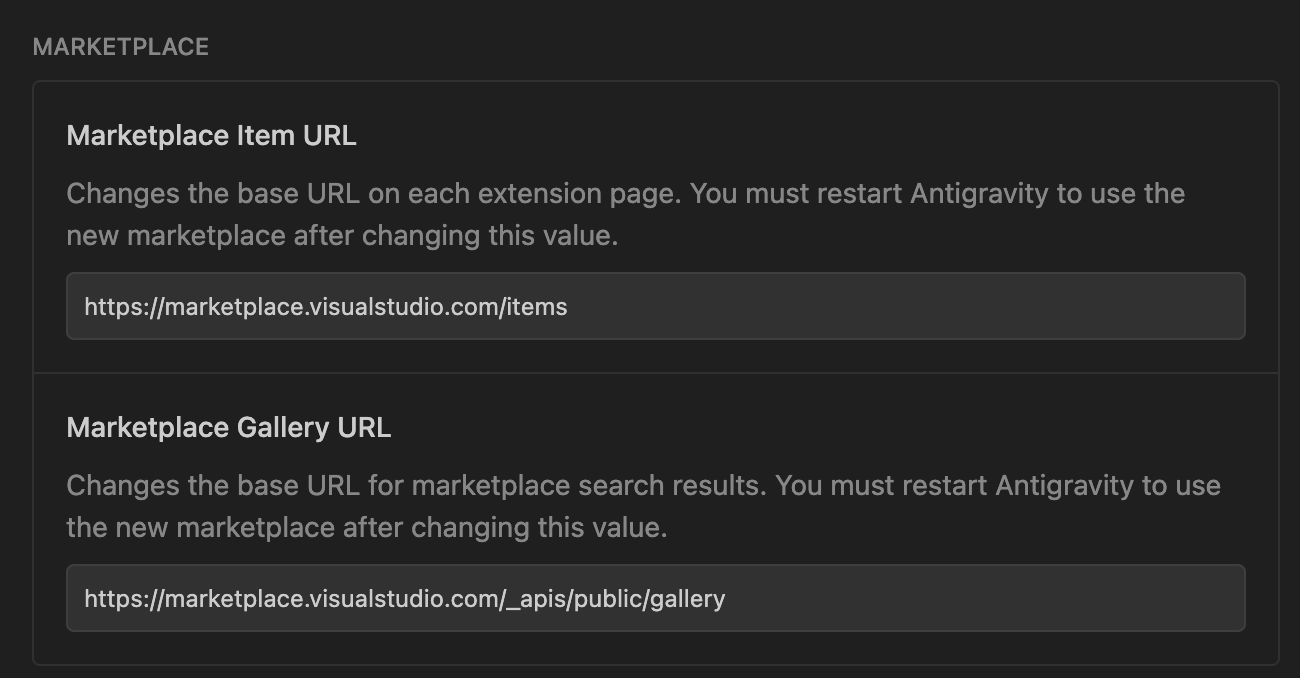
1 | # Marketplace Item URL |
The Font of PK10
If you’re using Powerlevel10k, the terminal prompt may not render correctly when you switch to another VSCode derivative, such as Antigravity or Kiro. To fix this, make sure to configure the font family required by Powerlevel10k.
1 | { |
File Association
.styl files are custom style files used in Hexo Theme-NexT. Since they are essentially CSS files, you can associate them with the CSS language mode in VS Code for better syntax highlighting and IntelliSense.
1 | { |
To be continue …
References
- REST Client: A VS Code extension for sending HTTP requests and viewing responses.
- GitLens: Supercharge Git capabilities in VS Code with blame annotations and repository navigation.
- Markdown and Visual Studio Code: Official documentation for Markdown editing in VS Code.
- Publishing Extensions: Guide to publishing VS Code extensions to the marketplace.